 EN
EN Русский
 Türkçe
How to connect Bitrix24
7 min · Business plan · Updated October 24, 2026
AirChat creates contacts and deals from leads and replies to customers through Bitrix24 Open Channels. Your team writes from the deal tab, and the message goes to the messenger the customer came from.
What you need
- Bitrix24 portal admin rights
- The portal domain, for example company.bitrix24.com
- The Business plan or higher
1Install the app on your portal
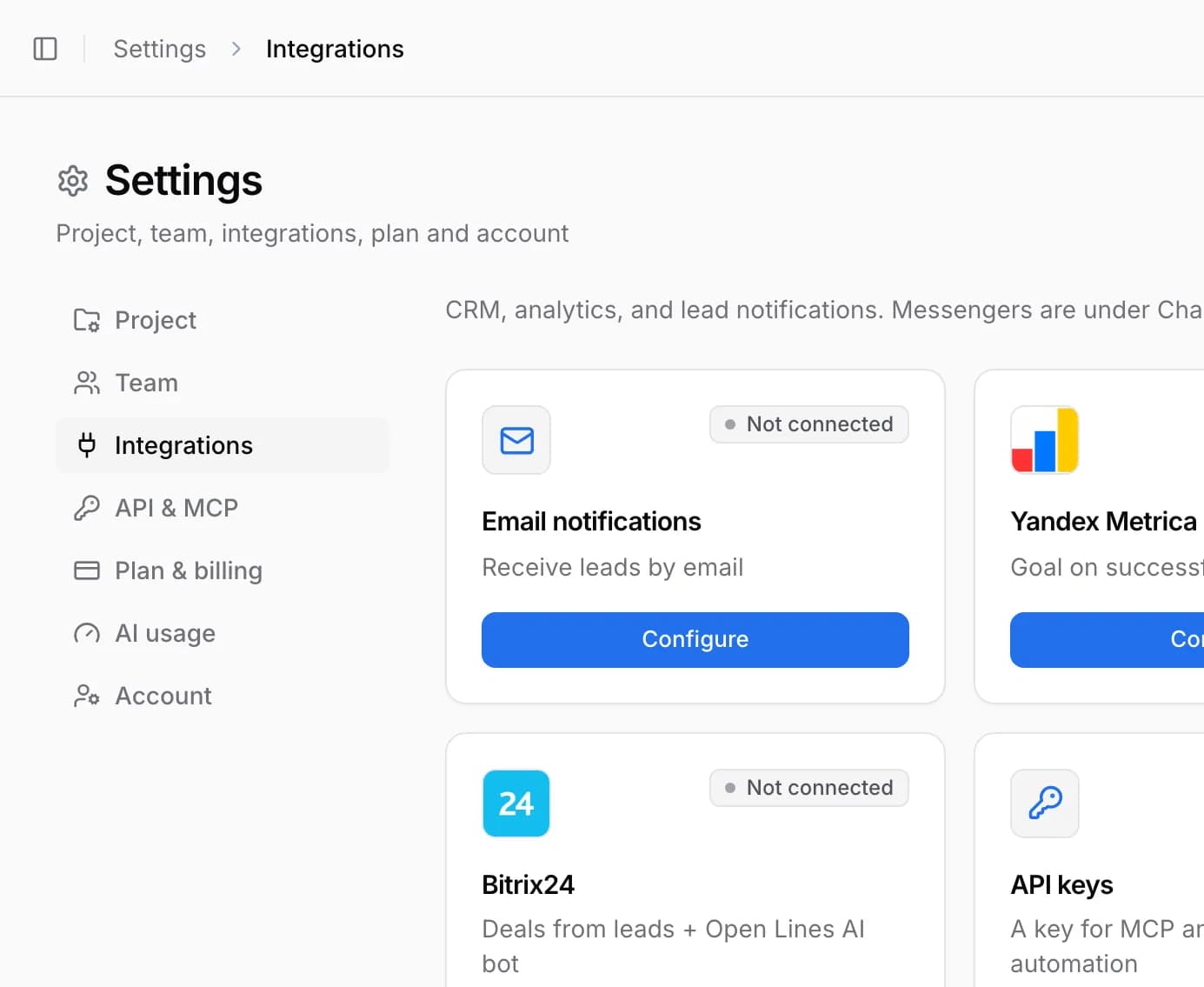
In AirChat open Integrations → Bitrix24, enter the portal domain and click Install AirChat on the portal. Confirm the installation in Bitrix24.
2Connect the portal to AirChat
Return to AirChat, tick I installed AirChat on this portal and click Connect Bitrix24.
If the browser blocked the pop-up, allow pop-ups for airchat.app and click the button again.
3Turn on the AI bot in Open Channels
Turn on AI bot in Open Channels so the assistant replies in chats and qualifies customers before handing them over to a manager.
Bitrix24 connected
Important. Install the app on the portal first (step 1), then connect. If you click Connect earlier, AirChat will say the app isn’t installed.
Common issues
Installing on the portal isn’t available
Check that you’re a portal admin. If there’s no install button, contact support and we’ll help install the app.
I need a lead, not a deal
Use the “Bitrix24 lead” webhook in API and webhooks — leads will arrive as Bitrix24 leads.