 EN
EN Русский
 Türkçe
How to connect WhatsApp
5 min · Pro plan · Updated October 24, 2026
A WhatsApp number connects to AirChat with a QR code, just like WhatsApp Web. After that your team and the AI assistant reply to customers from this number, and the phone stays with its owner.
What you need
- A phone with WhatsApp or WhatsApp Business
- Owner access to the AirChat project
- The Pro plan or a free trial
1Open the channel
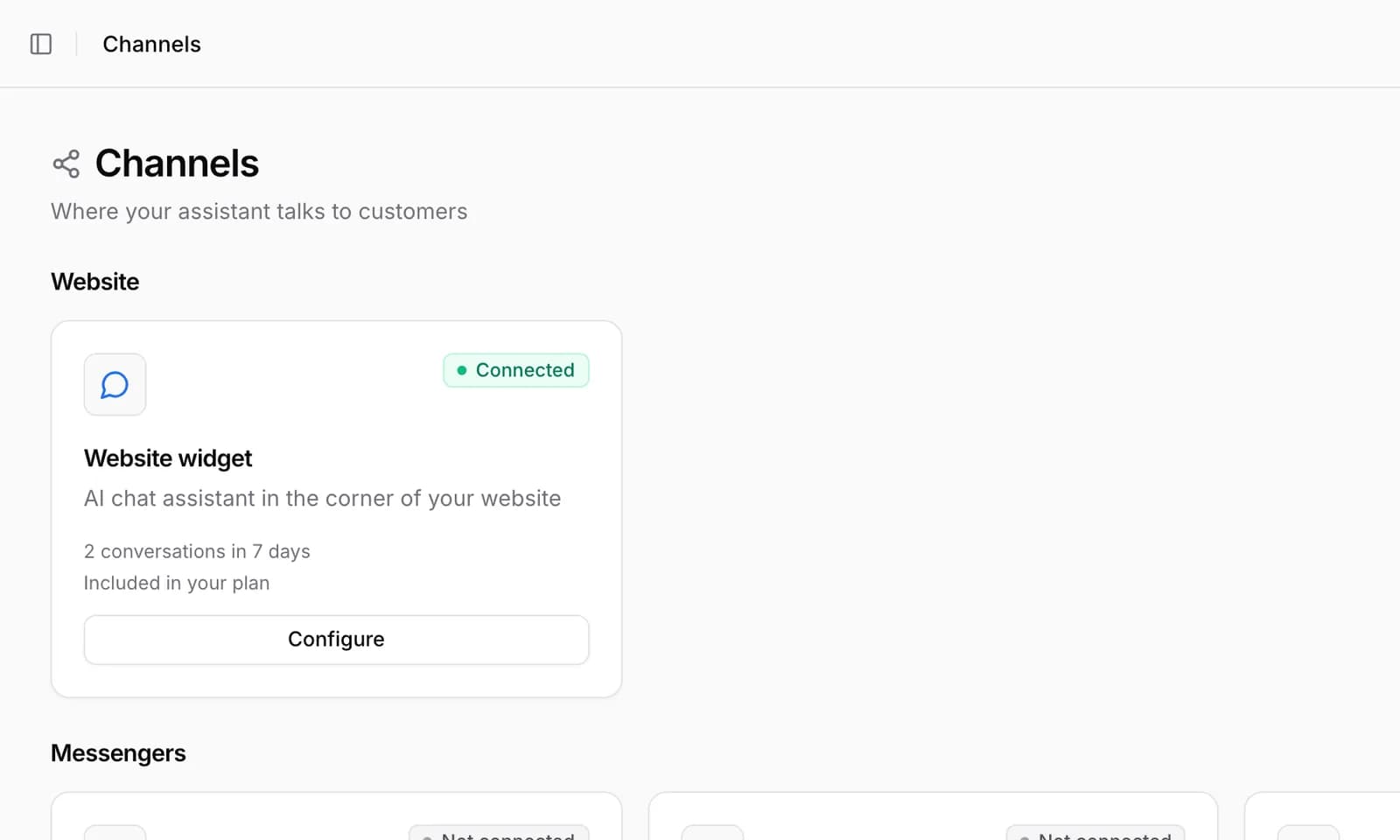
In your AirChat dashboard go to Channels and click WhatsApp → Connect WhatsApp.
2Scan the QR code
On the phone open WhatsApp → Settings → Linked devices → Link a device and point the camera at the QR code in AirChat.
The QR code expires quickly. If you missed it, click “Refresh QR” and scan the new one.
Connected · +1 415 555 01673Give your team access
In Team pick your colleagues and choose which numbers each of them can use. When someone leaves, remove their access — the conversations stay with the company.
Important. Don’t log out of the linked device on the phone — otherwise the channel disconnects and you’ll need to scan the QR code again.
Common issues
The QR code won’t scan
Refresh the QR code and make sure the phone has the latest version of WhatsApp.
Messages don’t arrive
Check the channel status in Channels. If it says “Not connected”, reconnect the number with a QR code.
Can I connect several numbers?
Yes. Each number is a separate channel: connect it with its own QR code and set up access in Team.