 EN
EN Русский
 Türkçe
How to add the chat to your website
5 min · Start plan · Updated October 24, 2026
The AirChat widget is added with one line of code. It works on any website: Tilda, WordPress, Bitrix, a custom site or Google Tag Manager.
What you need
- Access to edit your website
- An AirChat project with a knowledge base
1Copy the code
In Channels → Website chat → Install click Copy. The code is unique to your project.
<!-- AirChat Widget -->
<script src="https://airchat.app/embed/YOUR_PROJECT_ID"></script>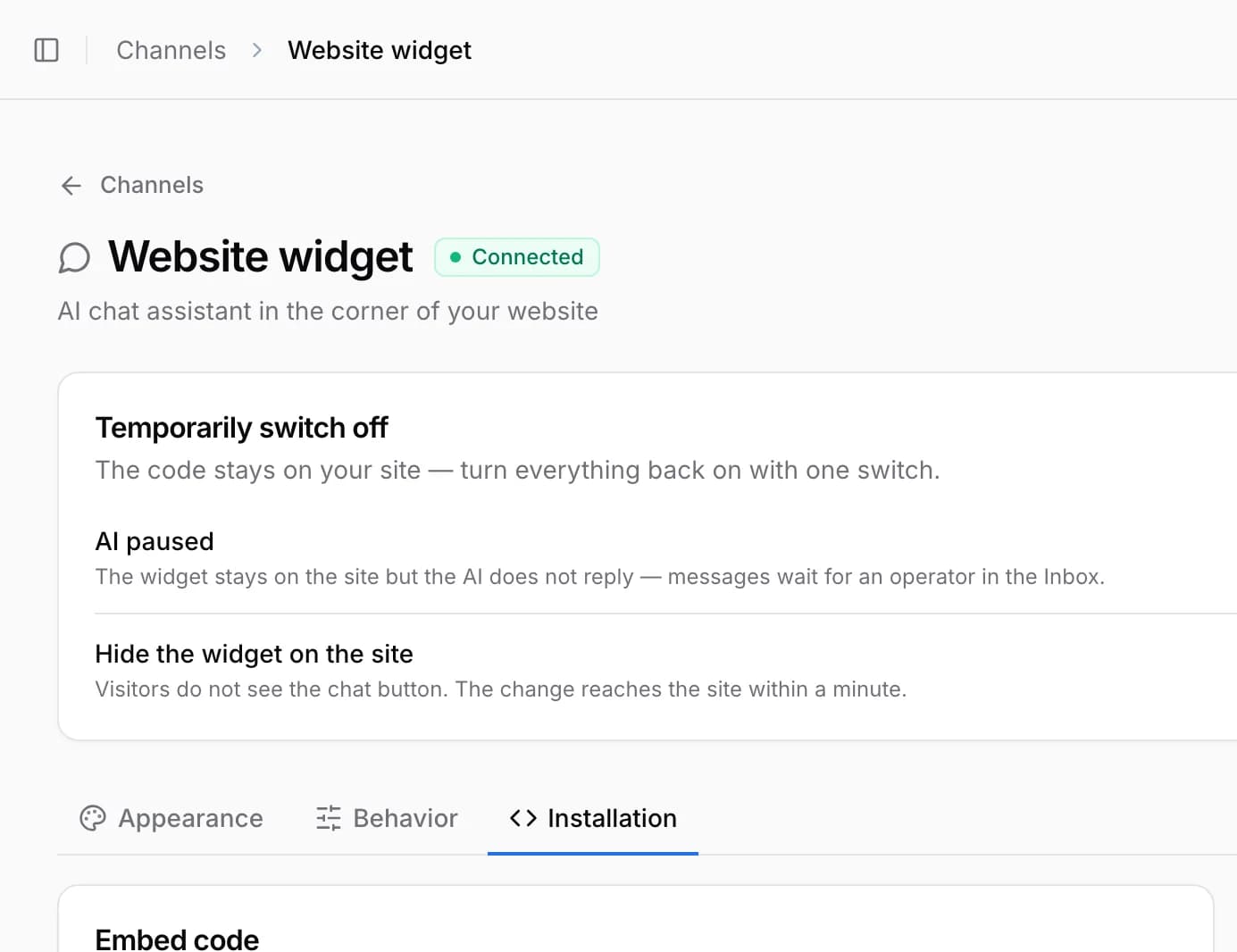
2Paste it into your website
Paste the code at the end of the page, right before the closing </body> tag. In Tilda use “HTML code for the HEAD section”, in WordPress the WPCode plugin’s Footer section, in Google Tag Manager a “Custom HTML” tag on All Pages.
3Check the installation
Publish the pages, clear the cache and open the site — the widget appears in the corner. In AirChat click Check to make sure the code is found.
Widget is on the site
Important. Add the code once for the whole site, not to every page separately — otherwise a page may show two widgets.
Common issues
The widget doesn’t appear
Clear the site and CDN cache and reload the page. Check that the widget is turned on in the channel settings.
How do I change the color and position?
In Channels → Website chat pick a color, a light or dark theme and the screen corner. You don’t need to change the code on the site.